Share your guest Wi-Fi
Enter your network name and password once. Save the Wi-Fi QR code as a PNG for a welcome sign your guests can scan at the door.
For iPhone and Android
Someone sent you a QR code? On iPhone, choose the screenshot from Photos to preview the link. When guests visit, let them scan a Wi-Fi code of your own.
Enter your network name and password once. Save the Wi-Fi QR code as a PNG for a welcome sign your guests can scan at the door.
Turn your menu link into a QR code, choose the Café frame and print it for each table. Guests can scan it to open your menu.
Share your phone number, email and website in one contact code. Scan someone else’s card to review their details and add them to Contacts.
See where to scan a screenshot, change a QR pattern or give your code a transparent background.
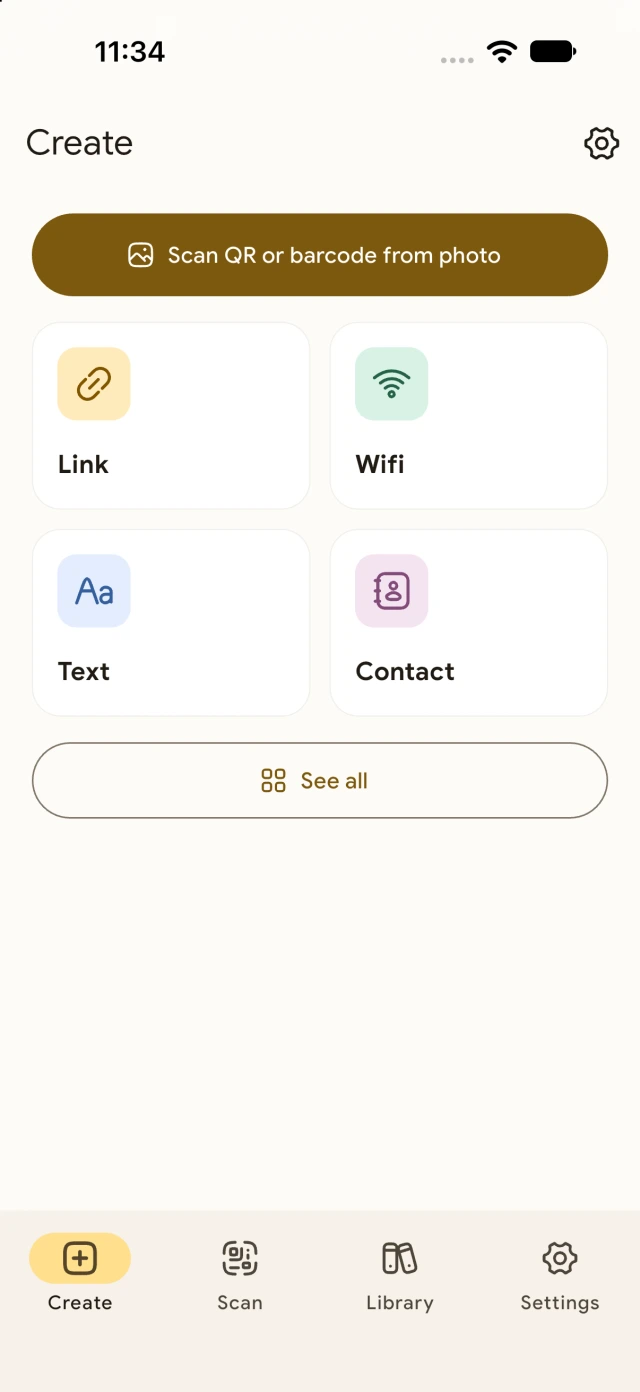
On your iPhone, tap “Scan QR or barcode from photo” on the Create screen and choose the screenshot from Photos. If the image contains several codes, step through the results and choose the one you need.
Open the Scan tab and point your camera at the code. For a QR link, preview the address before opening it. For a barcode, you can copy its value or save it to your library.
Choose a pattern and ink color that suit your card. In the color editor, set the background to transparent, save the PNG and place it on your design.
Give the code a name in your library and pin it if you use it often. You can also search by name or filter the library to see codes you’ve made or scanned.